
Windows Blue Screen? How to Fix BSOD Errors Quickly
Experiencing a Windows Blue Screen? Follow these step-by-step solutions to fix BSOD errors and get your PC running smoothly.
11/14/20251 min read
Is your computer suddenly showing a blue screen with error codes? Don’t panic — Windows Blue Screen (BSOD) errors happen to many users. They signal system problems, but most can be fixed quickly if you follow the right steps.
Restart Your Computer – Sometimes BSOD happens due to temporary glitches. Restarting often resolves minor system issues.
Check Recently Installed Software/Drivers – New software or drivers may conflict with your system. Uninstall any recent additions and reboot.
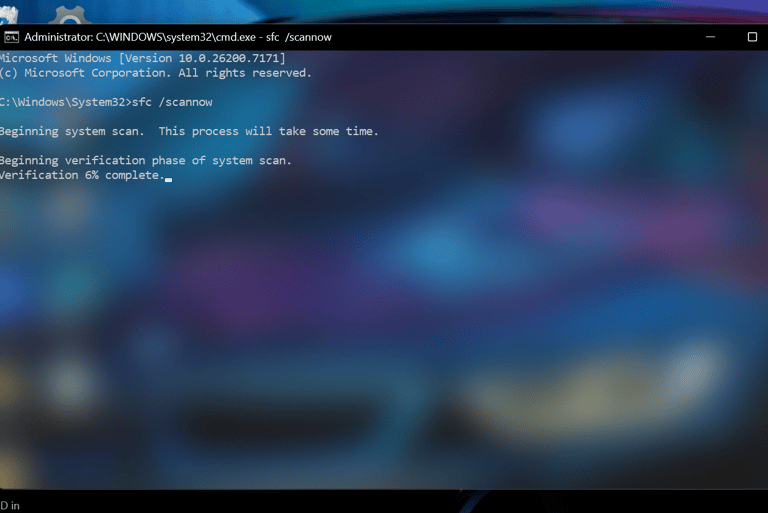
Run System File Checker (SFC) – Open Command Prompt as admin → sfc /scannow. This scans and repairs corrupted system files causing BSOD.
Update Windows & Drivers – Ensure all system updates and device drivers are current. Outdated drivers are a common BSOD cause.
Check Hardware – Faulty RAM or hard drive can trigger blue screens. Run memory diagnostics and check disk integrity.
If these steps fixed your Blue Screen problem, check out our YouTube channel [Tech With Cyber Ray] for quick, easy tech fixes and tutorials. Subscribe and stay ahead of tech issues!
EasyHacks.Tech
Daily IT Support Blogs & Insights
© 2025 EasyHacks.Tech | All Rights Reserved