
Fixing the Brightness Keys: How to Resolve F3 and F4 Key Issues on Your Keyboard
12/29/20254 min read
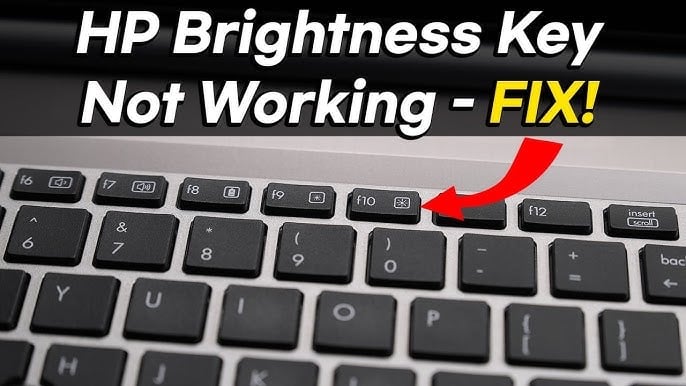

Understanding the Problem: Why Are F3 and F4 Keys Not Working?
The F3 and F4 keys on a keyboard, often designated for adjusting brightness on laptops and certain desktop computers, may malfunction for several reasons. A common cause of this issue is hardware failure. If the keyboard has sustained physical damage, like spills or wear and tear, specific keys may no longer respond. Additionally, internal connections can become loose due to frequent use, causing intermittent or complete failures of the brightness control keys.
Another significant factor contributing to the inoperability of the F3 and F4 keys is driver-related issues. Drivers are essential software that facilitate communication between the operating system and hardware components. If the keyboard or the display driver is outdated or corrupted, the corresponding brightness keys may not function correctly. Manufacturers frequently release updates, and not having the latest drivers can impact keyboard functionality.
Moreover, software updates or changes in system settings can lead to conflicts that prevent the brightness keys from working. Certain operating system updates might inadvertently alter key mappings or remove essential functionalities associated with these keys. Additionally, installed applications or system settings may override keyboard shortcuts, causing the brightness keys to become nonresponsive.
Lastly, user-specific settings, including accessibility options or third-party software configurations, can interfere with the expected performance of the F3 and F4 keys. By understanding these potential problems, users can better identify the root cause behind malfunctions and approach troubleshooting more strategically, ultimately ensuring that their brightness keys function as intended.
Step-by-Step Guide to Fixing Brightness Key Issues
The brightness keys, specifically F3 and F4, are essential for adjusting screen brightness on your keyboard. However, users may encounter issues where these keys do not respond as intended. This guide provides a step-by-step approach to resolving these brightness key problems effectively.
First, check for any shortcut conflicts that may disable the functionality of the F3 and F4 keys. This can occur if other applications use similar shortcuts. To verify this, navigate to the settings of frequently used applications and look for hotkey configurations. Disabling or reassigning conflicting shortcuts can restore the brightness adjustment functionality.
Next, updating your keyboard drivers is crucial. Outdated or corrupt drivers can impact hardware performance, including the brightness keys. To update the drivers, go to the Device Manager on your operating system. Locate the keyboard section, right-click on the keyboard device, and select 'Update Driver'. Follow the prompts to let your system search for updated drivers automatically.
After ensuring the drivers are up to date, examine the settings in your operating system. On Windows, access the Control Panel, and under 'Ease of Access', check the keyboard settings. Ensure that the option for enabling the function keys is correctly set. On Mac, visit System Preferences and check Keyboard settings to confirm the function keys are configured correctly.
Finally, effectively using keyboard shortcuts can mitigate brightness key issues. In many laptops, holding the 'Fn' key while pressing the F3 or F4 keys is necessary to adjust brightness. Familiarize yourself with your device's specific shortcut combinations to optimize your experience.
Additional Troubleshooting Tips for Persistent Issues
In cases where the basic troubleshooting steps do not resolve the issues with the F3 and F4 keys on your keyboard, a more comprehensive approach may be necessary. One of the first avenues to explore is the BIOS settings. Accessing the BIOS can reveal whether the keyboard functionality is fundamentally hindered at the hardware level. To enter the BIOS, restart your computer and press the designated key (often F2, DEL, or ESC) during the boot process. Within the BIOS menu, navigate to the keyboard configuration settings and ensure that any relevant options concerning keyboard functionality are enabled.
Another effective method is to run a system diagnostics test. Most operating systems come equipped with utilities that can assess various components of your hardware. For instance, Windows users can utilize the built-in Windows Memory Diagnostic tool to check if there are underlying hardware issues affecting keyboard performance. On macOS, the Apple Hardware Test can also be effectively used to diagnose potential problems with your keyboard.
It is also worthwhile to check other keyboard settings that may impact the functionality of the F3 and F4 keys. Within your operating system settings, explore the 'Ease of Access' or 'Accessibility' options. Some features may inadvertently disable certain keyboard functionalities or remap keys. Ensuring that features like Sticky Keys or Filter Keys are turned off can often resolve unexpected behavior with function keys.
Additionally, consider updating your keyboard drivers. Outdated or corrupted drivers can lead to malfunctioning keys. Visit your device manufacturer's website to download the latest keyboard drivers for your specific model. After installation, restart your computer to apply the changes. By following these advanced troubleshooting tips, you can further investigate and address persistent issues related to the brightness keys on your keyboard.
When to Seek Professional Assistance: Knowing Your Limitations
While self-troubleshooting is often the first step in resolving issues with brightness keys like F3 and F4 on your keyboard, certain situations warrant the expertise of a professional technician. It is essential to recognize the limitations of personal knowledge and skills when it comes to keyboard functionality, particularly if standard troubleshooting methods fail to produce results.
One significant indicator that professional assistance may be necessary is the presence of hardware failures. If the keys themselves are unresponsive despite attempts at resetting or updating the related software, it may suggest a deeper issue within the keyboard mechanism or associated hardware components. In such cases, a technician has the tools and expertise to conduct thorough diagnostics and determine if repairs or replacements are applicable.
Furthermore, if the brightness key issues appear to be linked to complex software problems—such as system conflicts, corrupted drivers, or operating system bugs—reaching out to a professional can save time and potential frustration. These software complications may require specialized knowledge or access to proprietary tools that are not typically available to the average user.
In addition to hardware and software concerns, users should consider seeking professional assistance if they feel overwhelmed or uncertain about how to proceed with troubleshooting. A technician not only brings technical skills to the table but also allows users to focus on their core tasks without the added stress of resolving technical issues themselves.
In conclusion, knowing when to seek professional assistance is crucial in addressing keyboard issues effectively. Users should assess the complexity of their problems and not hesitate to reach out to a technician when in doubt, reassuring themselves that expert help is available when needed.
EasyHacks.Tech
Daily IT Support Blogs & Insights
© 2025 EasyHacks.Tech | All Rights Reserved